How does DASH eXchange work?
DASH eXchange lets you create Feeds that display new developments from the DASH platform on your website using a technology called iFrames.
An iFrame is a simple HTML element that loads one webpage inside another. iFrames are widely supported, easy to add to most website builders, and do not require advanced technical skills. You can learn more about iFrames here.
DASH has further simplified the setup process within the platform, and DASH Support is available if you need help at any point.
What is a DASH eXchange 'Feed'?
A DASH eXchange Feed is a view of DASH that you set up to control what shows on your site. You choose the feed type, the iFrame size, the number of properties shown (for certain feed types), the styling so it matches your branding and website style, and you can even select specific properties you want to feature.
Sample iFrame Code:
<div style="display: flex; flex-direction: column; height: 100vh; width: 100%; overflow: hidden;">
  <iframe src="https://api.dashtodash.com/rest/idx/embedded/69879650051fd5b8146f6a49?timestamp=1770493632252" allowfullscreen style="height: 100%; width: 100%; border: none"></iframe>
</div>
Available Feed Types:
-
Single Property Feed - A Single Property Feed displays one property in the iFrame. The entire property's page from DASH is displayed in its customer-facing format. This includes the property's featured images, basic information, overview, features & amenities, inventory with floor plans, a map view, and most importantly, a form to contact you about the property.
-
Portfolio Feed - A Portfolio Feed displays a curated list of properties that you have saved to a DASH portfolio. See Creating a Property Portfolio and Adding Properties to a Portfolio for guides on how to create and add properties to portfolios.
- Search Bar Feed - A Search Bar Feed is the equivalent of the Properties tab within DASH. It displays a search bar with filters, and a grid list of properties. The feed version of the properties tab has been modified to display only customer-facing filters and property pages. A search bar feed can be configured in one of three different ways:
- Search Bar Only - Displays a search bar with no properties displayed below it.
- Search bar with List (Grid Default) - Display the search bar with the first group of properties below it, formatted as a grid-list.
- Search bar with List (Map Default) - Display the search bar with the first group of properties below it, shown as points on a map.
Subscribing to DASH eXchange
-
New Users:
-
To register for DASH eXchange as a new DASH user, go to our Sign Up page and select DASH Exchange as your plan on the plan selection page.
-
-
Existing DASH Users:
-
To register for DASH eXchange as an existing DASH user, go to the Billing tab in settings and select DASH eXchange as your plan. You can also go to the Exchange tab in the left navigation menu and then click Upgrade Now at the bottom.
-
Reference this article for more details on signing up for DASH.
-
If you are new to DASH, we recommend you familiarize yourself with DASH's other features before configuring eXchange (this is not a requirement, but it will help you get the most out of your subscription).
ConfigurING DASH exchange Settings
Now that you are familiar with iFrames and the types of feeds available, we are ready to configure your first feed.
-
Navigate to the Exchange tab in the DASH left navigation menu.
 Click on the Exchange tab to access the feed configuration settings.
 -
Click Settings to configure eXchange to securely embed feeds into your website.
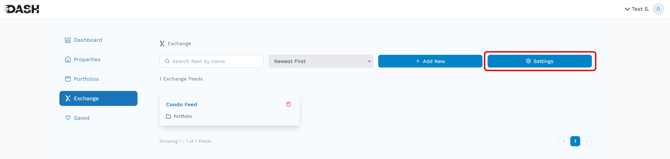
These settings apply to all feeds and are essential to the proper operation and integration of DASH eXchange feeds into your website.
These settings also contain styling & branding settings to make the feed more like a native part of your site. - Configure Settings:
-
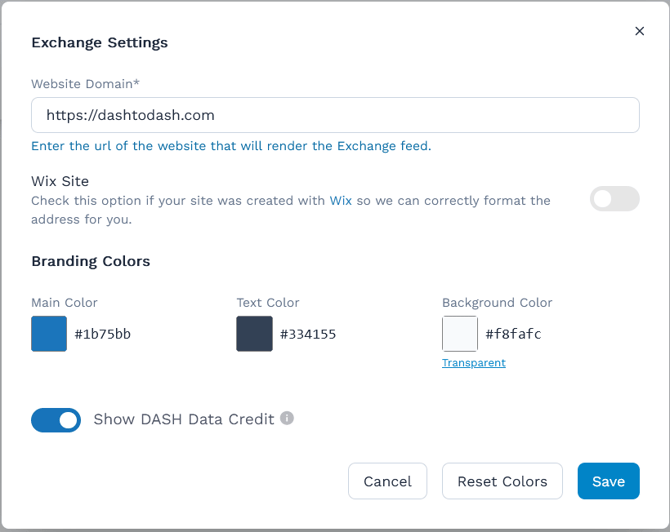
Website Domain: Enter the full address of your domain, including the https:// prefix. This limits the feed to being embedded in your website only.
- Wix Site: Toggle this setting on if your website is hosted with Wix. This is necessary to meet the technical requirements for embedding an iFrame in a Wix site.
- Branding Colors: Use these color settings to match the color of the eXchange iFrame components to the other components on the page and your website's theme. This will help the feed blend in for a seamless customer experience.
- DASH Data Credit: Use this toggle to enable or disable the "Powered by DASH" credit in your feeds.
-
 Click on the Exchange tab to access the feed configuration settings.
Tip: If you don't know the HEX (#123456) codes for the colors of components on your website, you can use free or built-in tools to get them:
-
- Windows Users: Microsoft Windows does not have a built-in color picker. You can instead use a browser extension like ColorZilla, or take a screenshot and then use your screenshot utility's eyedropper tool.
- Mac Users: Mac OS has a built-in utility called "Digital Color Meter". Open this utility and then use the cursor to find the HEX code of any pixel on the screen. See this Apple support page for additional information.
Add New DASH Exchange Feeds
-
Click + Add New to create a new feed.
 Click the 'Add New' button to create a new feed.
 -
Fill in a name for the feed & select a type. The feed name is visible to site visitors; it should be descriptive to allow for easy feed management and identification. Feed types are described below.
 A single property feed being created to showcase the Waldorf Astoria Miami property.
 -
Click on your newly created feed to configure its settings.
 Click the 'Add New' button to create a new feed.
 A single property feed being created to showcase the Waldorf Astoria Miami property.
 Click on a feed to set or edit it's configuration
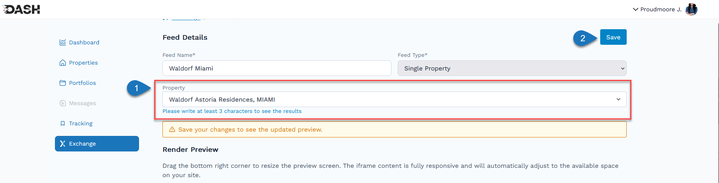
To Configure a Single Property Feed:
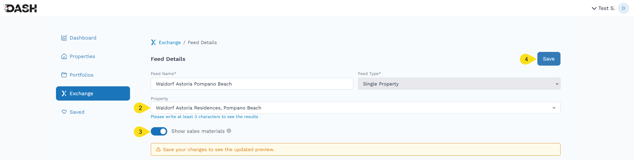
An example single property feed
- Click on your new feed to configure it.
- Select a property from the dropdown.
- Optional: Enable the display of sales materials.
- Click save to generate the iFrame code & preview.
To Configure a Portfolio Feed:
To create a feed for a DASH portfolio you have created, follow these steps: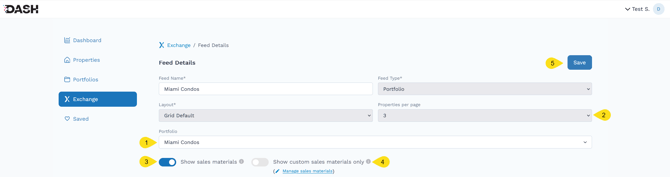
- "Portfolio" Dropdown: Select a portfolio to link to the feed. The feed will only display properties from the selected portfolio.
- "Properties per page" Dropdown: This controls how many properties will be displayed at-a-time in the iFrame. The iFrame will then create pages equal to the total number of properties in the portfolio divided by the properties per page.
- Show sales materials: Toggle this on to show all the marketing materials (brochures, fact sheets, etc..) for the properties shown.
- Show custom sales materials only: Toggle this on (Show sales materials must already be enabled) to select only specific sales materials with each displayed property.
- Click Save.
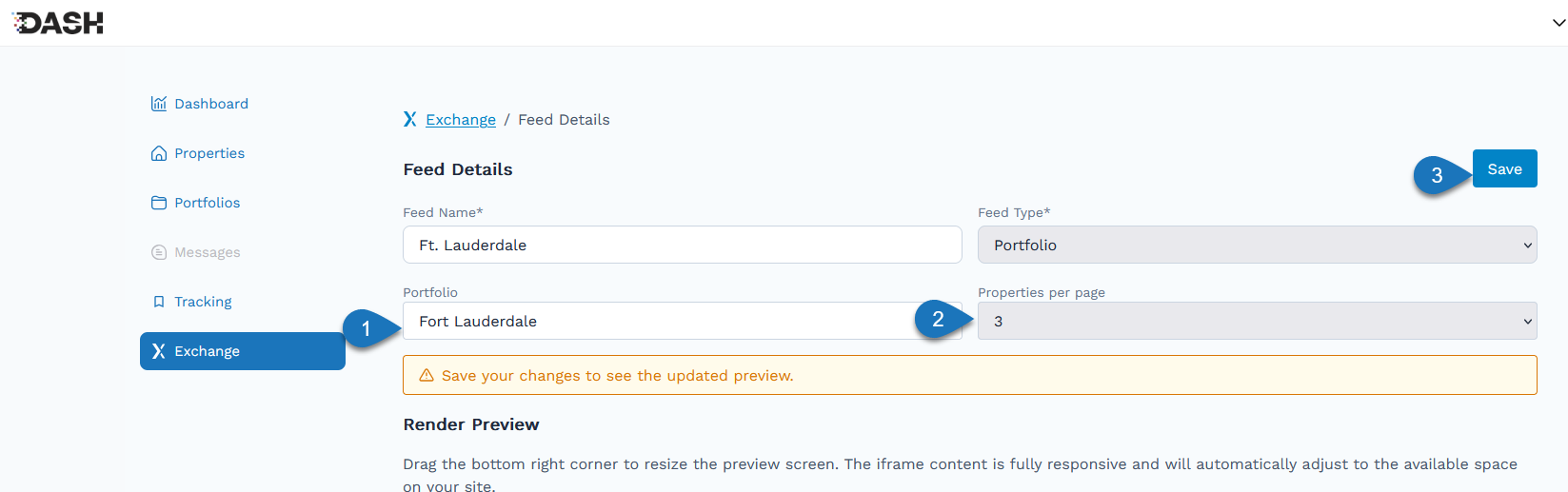
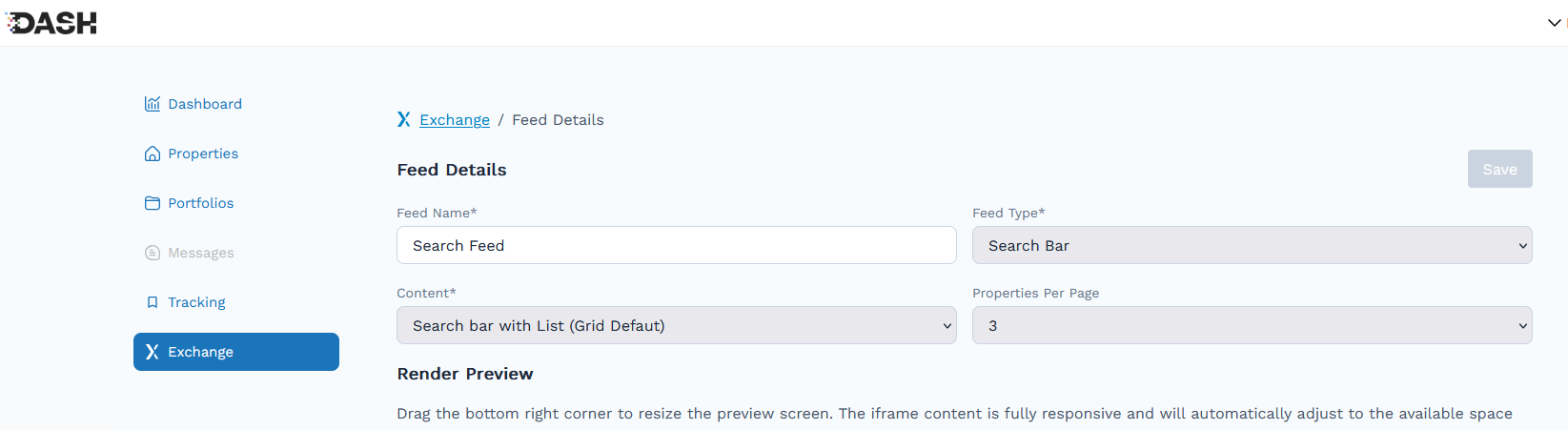
To Configure a Search Bar Feed:

- Click on your newly created portfolio.
-
Select the type of search bar feed by making a selection in the Content field. The search bar feed type can be configured in one of three ways.
- Search Bar Only: This displays the search bar with no properties included below it. When used, it functions like the DASH search you are used to, allowing users to search by property name, market area, or several other parameters. Results are client-facing versions of the data you are used to and are displayed in accordance with the Properties per page setting in the feed.
- Search Bar with List (Grid Default): Display the search bar with the first group of properties below it, formatted as a grid-list, and the number of results displayed follows the value set in the Properties per page setting.
- Search Bar with List (Map Default): Display the search bar with the first group of properties below it, shown as points on a map.
- Select the number of search results to show by setting the number of Properties per page in the dropdown.
- Click Save.